FEATURE · DRAWING
Magnetic snap to every vertex and edge on the map.
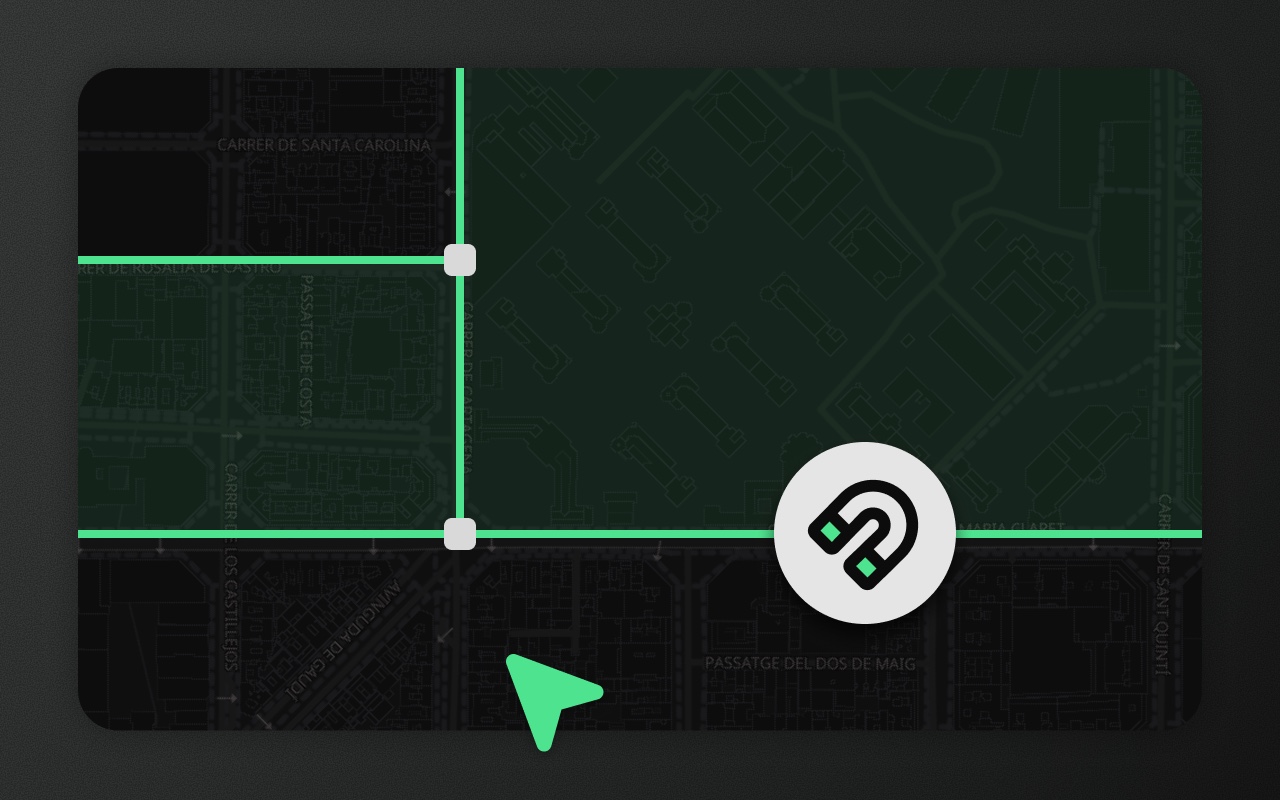
Active by default while drawing or editing. Snaps to vertices first, edges second. Hold ⌘ to place freely. No tool switching.
Try it
- 1Press G
- 2Click the corners of the gap between the lots: each click snaps
- 3Click the first corner again to close it
Without snapping, shared borders never quite line up
You draw Country A. You draw Country B next to it. Their shared border is off by 0.00002 degrees. Your GIS tool flags it as a topology error. Your users see a thin gap at every zoom level above 10.
Snapping solves this at input time. As the cursor approaches a nearby vertex or edge, Element Editor pulls it in. The new geometry lands exactly on the existing one. No post-processing, no cleanup pass, no "find and merge" routine.
What Element snaps to
- Vertices of every other feature (priority)
- Edges of every other feature (secondary, when no vertex is within range): the nearest point along the edge
The priority is vertex → edge. If several candidates of the same kind are within the snap radius, the closest wins.
When snapping is active
On by default while drawing or vertex-editing. Applies to:
- The click-based drawing tools (area, line, point, rectangle, circle, route) plus cut hole, slice and measure
- Every vertex-edit operation (move, insert)
Freehand strokes and transform-box drags don't snap.
Users switch snapping off with the Snapping toggle in the Settings panel, or hold ⌘ / Ctrl to skip it for a single click or drag without leaving the tool. The radius is 15 pixels — comfortable at most zoom levels.
Visual feedback
When the cursor is within range of a snap target, Element shows a small circle at the target point. Click to commit — your new vertex or edge insertion lands exactly there.
Snap indicators respect context: during vertex-edit mode, the indicator suppresses on the currently-dragged vertex itself (you can't snap a point to itself) and on edge midpoint safe zones (preventing accidental snap-to-your-own-edge during edge inserts).
Things to know before you ship
- Snapping is pixel-based, not coordinate-based. The radius is measured in screen pixels, so the geographic distance it corresponds to depends on zoom level. This matches user expectation — "what looks close enough to snap to" is a visual judgement, not a geodetic one.
- Snap targets come from every feature in the collection. Element skips features whose bounding box is out of snapping range and only projects points near the cursor, at most once per frame, so snapping stays light with thousands of features.
- Hold ⌘ (or Ctrl on Windows/Linux) to suppress snap. If you need to place a vertex close to an existing feature but not on it, hold the modifier during the click or drag. The snap indicator clears for the duration.
Works with
- Drawing — every drawing tool respects snap.
- Vertex editing — vertex moves and edge inserts snap to neighbouring features.
- Boolean operations — useful for creating polygons that share clean borders before running union, intersect, or subtract.