FEATURE · EDITING
Reshape any feature with a drag, a click, or a key.
Drag to move. Click an edge midpoint to insert. Backspace to delete. Works for polygons, lines, and every Multi* geometry type.
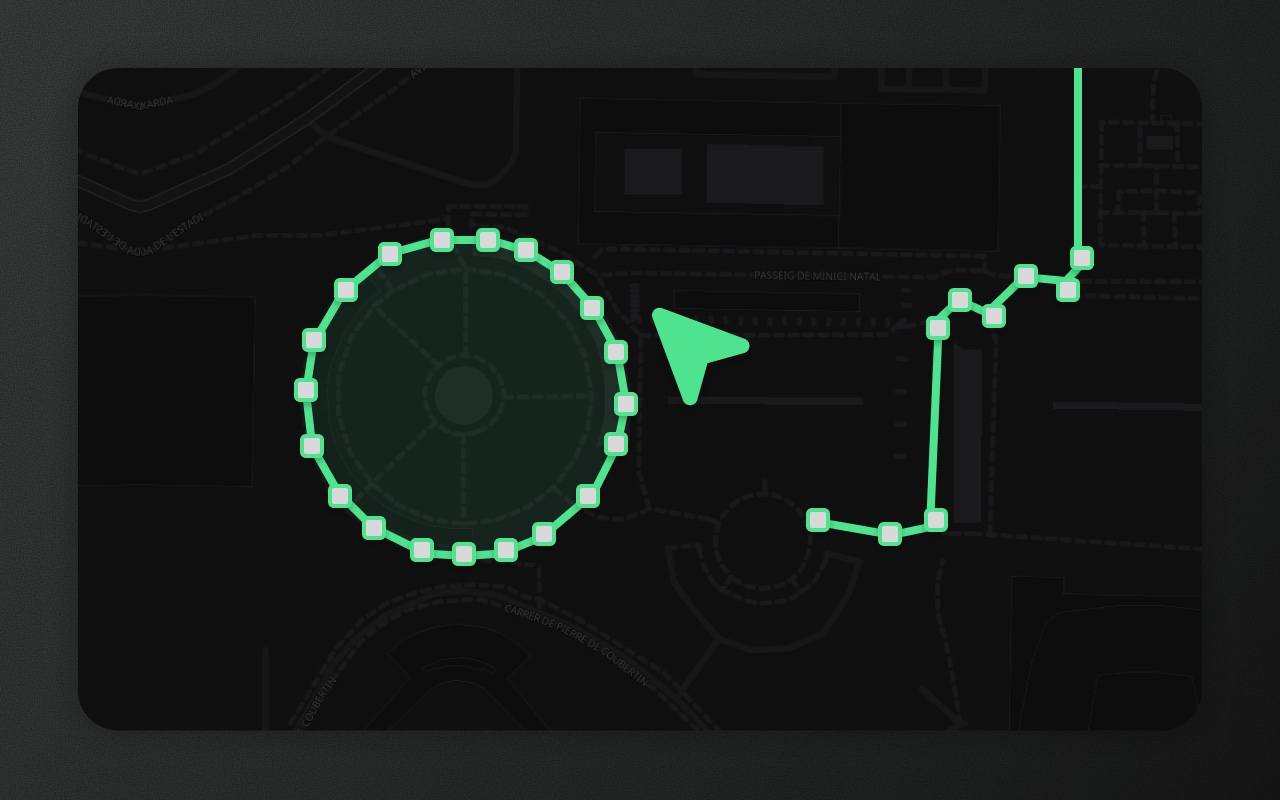
Try it
- 1Double-click the plaza draft
- 2Drag a corner to reshape it
- 3Hover an edge, click its diamond to add a point
- 4Click a point, press Backspace
What vertex editing solves
You drew a polygon, but one corner is in the wrong place. Or a line needs an extra waypoint. Or a Multi-polygon's second ring needs one coordinate nudged by a few metres. This is the work that happens after drawing — every map editor needs it, and every implementation of it gets weird at the edges.
Element Editor's vertex editor handles every geometry type with the same code path. Drag a vertex, click an edge to insert, press Backspace to delete. The interaction model is identical for Polygon, LineString, MultiPolygon, MultiLineString, and GeometryCollection — no special cases, no hidden modes.
How to enter vertex-edit mode
Select a feature, then:
- Double-click the feature, or
- Press Enter while selected
Element draws small handles at every vertex, and a diamond at the midpoint of the edge under the cursor. Esc exits vertex mode and keeps the feature selected.
Move, insert, delete
Move — drag any vertex handle. The shape updates live during drag; adjacent edges follow.
Insert — hover an edge and click its midpoint diamond, or press anywhere along the edge and drag: a new vertex appears and follows the cursor. On rings with more than 500 points, Element shows at most 500 handles, spaced evenly by on-screen distance rather than by array index, so dense stretches (like OSM coastlines) don't hog them; zoom in to reach the rest.
Delete — click a vertex to select it, then Backspace or Delete. Deleting the last valid vertex of a polygon is blocked (a polygon needs at least three points to exist).
Multi-geometries: per-part editing
For MultiPolygon, MultiLineString, and GeometryCollection features, Element surfaces each part as a row in the selected-feature panel. Click a part to edit just its vertices; the others show as muted outlines. This is the only sane model for multi-geometries — editing every part simultaneously creates vertex-handle collisions at touching boundaries.
Show it in code
Vertex editing isn't a prop — it's available whenever a feature is selected. The only switch is readonly, which turns off every user edit:
import { ElementEditor } from '@element-editor/react'

export default function App() {
  return (
    <ElementEditor
      readonly={false} // default; set to true to lock all vertex editing
      onFeatureUpdate={(id, feature) => {
        // fires on commit, not during drag — no spam
        console.log('updated', id, feature)
      }}
    />
  )
}onFeatureUpdate fires on commit (when the user finishes dragging, inserts a vertex, or deletes one) — not on every mouse move. onChange fires on the same commits; neither fires during the drag itself.
Things to know before you ship
- Rectangles and circles become plain polygons. There's no right-angle constraint: dragging a rectangle's corner moves only that corner, and corners can be deleted. Entering vertex edit on a rectangle or circle shows a notice; the first point you actually change drops its
_drawTypein the same step, and one undo brings the rectangle or circle back. To resize one and keep its type, use the transform box (A). - Routes become plain lines. A
_drawType: 'route'feature follows a road network. Entering vertex edit shows a warning; the first point you change removes_drawTypeand_waypoints, and it's an ordinary line from then on (Element never re-routes it). Transforming a route keeps it a route but warns once per session that it no longer follows the roads. - Handle thinning uses on-screen distance. On rings with more than 500 points, the handles shown are spaced by pixel-space arc length, not array index. This matters for real-world polygons with uneven vertex density — country borders can have 10× variation in point density between coastlines and straight borders.
- Vertex edits are undoable. Each commit lands in the 25-level undo stack. ⌘Z rolls back the last move, insert, or delete.
Works with
- Drawing — the tools that create the shapes you later edit.
- Snapping — vertex drags snap to nearby points and edges on other features.
- Selection & transform — move, scale, or rotate entire features instead of individual vertices.