Schema and validation
Give your features structured, typed properties.
By default, features have an empty properties object. Schemas let you define named fields with types and validation rules, so users can fill in structured data alongside their geometry. A restaurant marker can carry a cuisine type, rating, and website. A land parcel can carry an owner name, area class, and last-survey date. This is Element Editor's core differentiator from basic GeoJSON editors.
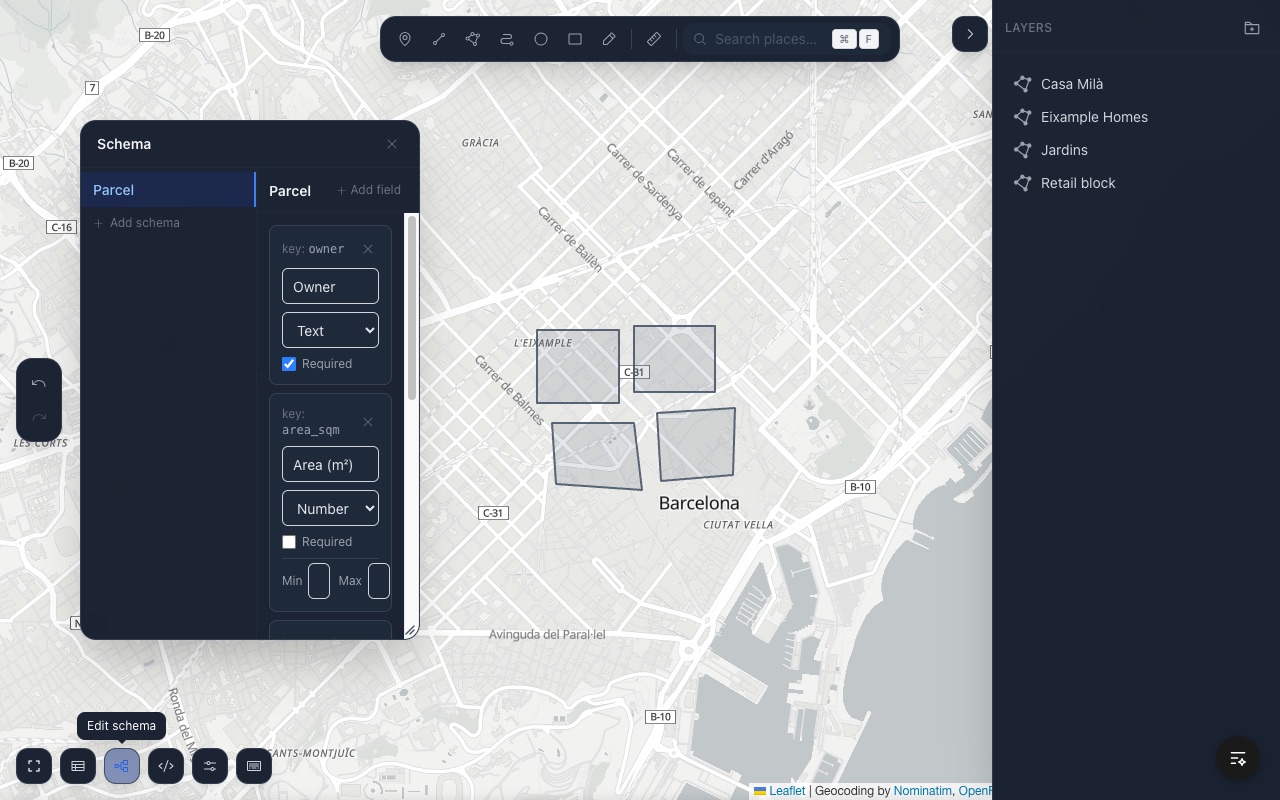
What a schema is
A schema is a named set of typed fields. Each field has a key (auto-generated slug), a display label, a type, and optional constraints like min, max, and options. The key is what appears as the property name on each feature.
Each feature carries a schemaId that links it to a schema definition. When the user selects a feature, the property form renders the fields from that schema. Multiple schemas can coexist in a single editor instance.
Defining a schema via props
Pass a Schema object to the schema prop of @element-editor/react. This becomes the default schema — the one applied to new features automatically.
import { ElementEditor } from '@element-editor/react'
import type { Schema } from '@element-editor/react'

const locationSchema: Schema = {
  id: 'location',
  name: 'Location',
  fields: [
    { key: 'name',     label: 'Name',     type: 'text',     required: true },
    { key: 'category', label: 'Category', type: 'select',   required: false, options: ['park', 'hospital', 'school'] },
    { key: 'capacity', label: 'Capacity', type: 'number',   required: false, min: 0 },
    { key: 'notes',    label: 'Notes',    type: 'textarea', required: false },
    { key: 'website',  label: 'Website',  type: 'url',      required: false },
    { key: 'verified', label: 'Verified', type: 'boolean',  required: false },
    { key: 'surveyed', label: 'Surveyed', type: 'date',     required: false },
  ],
}

export default function App() {
  return (
    <div style={{ width: '100%', height: '600px' }}>
      <ElementEditor schema={locationSchema} onChange={(data) => console.log(data)} />
    </div>
  )
}If a schema with the same id already exists in initialData, the prop is ignored — the stored schema takes precedence.
Field types
| Type | Renders as | Constraints |
|---|---|---|
text | Single-line text input | — |
textarea | Multi-line text input | — |
number | Number input | min, max |
url | URL input with link preview | — |
select | Dropdown | options: string[] |
date | Date picker | — |
boolean | Checkbox | — |
Multiple schemas
The schema prop sets the default schema. Users can define additional schemas via the schema editor — open it with the S key or the schema button (bottom left by default). All schemas travel with the FeatureCollection in the metadata.schemas array.
Each new feature is assigned the default schema when it is created. The user can change a feature's schema from the property panel.
What a feature looks like in onChange data
When a user fills in property fields, the values appear in properties using the field key as the property name. The schemaId links the feature back to its schema definition.
{
  "type": "FeatureCollection",
  "metadata": {
    "schemas": [
      {
        "id": "location",
        "name": "Location",
        "fields": [
          { "key": "name",     "label": "Name",     "type": "text",   "required": true },
          { "key": "category", "label": "Category", "type": "select", "required": false, "options": ["park", "hospital", "school"] }
        ]
      }
    ],
    "groups": []
  },
  "features": [
    {
      "type": "Feature",
      "id": "f1a2b3c4",
      "schemaId": "location",
      "geometry": { "type": "Point", "coordinates": [2.35, 48.85] },
      "properties": {
        "name": "Parc Monceau",
        "category": "park"
      }
    }
  ]
}Pass this FeatureCollection back as initialData and the editor will restore both the schema definitions and the feature properties.
Non-destructive field removal
Removing a field from a schema does not delete existing property data from features. The field definition is removed from metadata.schemas, and the property form stops showing it — but the raw value remains in properties on every feature that had it filled in.
This means you can safely remove a field, later re-add it with the same key, and find the old values still present. Data is never silently discarded by a schema change.
Validation and the submit flow
The schema prop and onSubmit/onValidationError callbacks are available on @element-editor/react and on both adapters' ElementEditorControls. When a submit is triggered (on <ElementEditor>, the "Apply changes" button, which appears when onSubmit is provided; on any package, ref.submit()), Element checks that all required fields on all features are filled, and that number fields respect their min/max bounds.
import { ElementEditor } from '@element-editor/react'
import type { FeatureCollection } from '@element-editor/react'

<ElementEditor
  schema={locationSchema}
  onValidationError={(errors) => {
    // errors: Record<featureId, string[]>
    // Keys are feature IDs, values are arrays of error messages
    console.log('Validation failed:', errors)
    // Example: { "f1a2b3c4": ["Name is required"] }
  }}
  onSubmit={(data: FeatureCollection) => {
    // Only reached when every required field on every feature passes validation
    fetch('/api/map', { method: 'POST', body: JSON.stringify(data) })
  }}
/>onSubmit and onChange are independent. onChange fires on every committed change regardless of validation state. onSubmit only fires when validation passes. Use onChange for auto-save and onSubmit for explicit form submission.
Inline validation errors are shown in the property form as the user types — the onValidationError callback is for the application layer to handle the failure at submission time.
Passing schemas with adapters
The adapters' ElementEditorControls accept the same schema prop: <ElementEditorControls schema={mySchema} />. To ship several schemas, or schemas together with features, put them in metadata.schemas of initialData. Users can then modify schemas in the schema editor if you include SchemaModal from @element-editor/ui in your layout. The adapters don't re-export the data types, so import them from @element-editor/core (add it to your package.json).
import type { FeatureCollection, Schema } from '@element-editor/core'
import { ElementEditorControls } from '@element-editor/adapter-maplibre'

const mySchema: Schema = {
  id: 'poi',
  name: 'Point of Interest',
  fields: [
    { key: 'name', label: 'Name', type: 'text', required: true },
  ],
}

const initialData: FeatureCollection = {
  type: 'FeatureCollection',
  metadata: { schemas: [mySchema], groups: [] },
  features: [],
}

<ElementEditorControls map={map} initialData={initialData} onChange={(data) => console.log(data)} />What's next
- Reference: types —
Schema,SchemaField,FieldTypeinterfaces - Reference: @element-editor/react — full
ElementEditorPropstable includingschema,onSubmit,onValidationError - Custom UI with adapters — how to include
SchemaModalin an adapter layout