Measure
Measure distances and areas without adding features to the map.
The Measure tool overlays a temporary path on the map and displays a running total of its distance or enclosed area. Measurements are not added to the feature collection — they are a separate, non-exportable layer. Multiple completed measurements can coexist on the map at the same time.
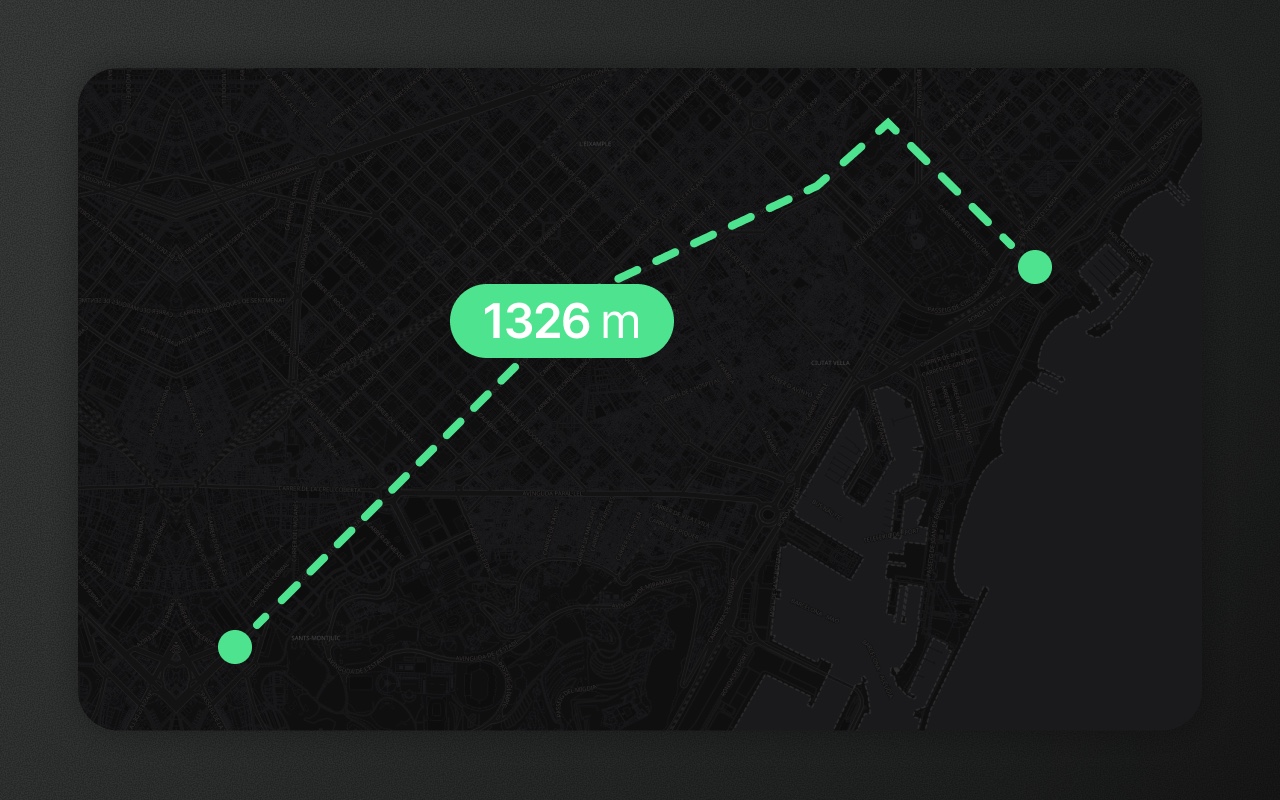
Activating Measure
Press M (default key, configurable) or click the ruler icon in the floating toolbar. The cursor changes to indicate measurement mode is active.
Measuring distance
- Select Measure distance (the default) in the active toolbar.
- Click the map to place the first point.
- Continue clicking to add waypoints. The running total updates after each click, showing the cumulative straight-line distance.
- Double-click or press
Enterto finish the measurement. The path is locked in place as a completed measurement.
Measuring area
- Select Measure area in the active toolbar.
- Click to place points, building a closed shape. The enclosed area updates live.
- Double-click or press
Enterto close and lock the measurement.
Managing measurements
Completed measurements persist as overlays until you remove them. Each measurement has a delete button visible on hover or selection. Removing a measurement does not affect the feature collection.
Multiple measurements can be active simultaneously — finish one, press M again, and start another.
Creating or removing a measurement participates in the editor's undo history: Cmd/Ctrl+Z reverses the last action whether it was a feature edit or a measurement, and Cmd/Ctrl+Shift+Z redoes it. The two timelines are unified — measurements ride alongside feature edits on the same 25-step stack.
Units
Measurement results follow the units setting in ElementEditorConfig:
<ElementEditor
  config={{
    units: {
      length: 'metric',   // or 'imperial' or 'auto'
      area: 'metric',
      display: 'human',   // "1.2 km" — use 'raw' for "1234.56 m"
    },
  }}
/>In 'auto' mode, Element Editor picks metric or imperial based on the browser locale.
Constraints
- Measure works in both
readonlyand edit modes. - Measurements are not included in
onChangeoutput or any export. - Pressing
Escapeduring an active measurement cancels the in-progress path without saving it.